How to Back Up Your Computer: Complete Backup Guide (2026)
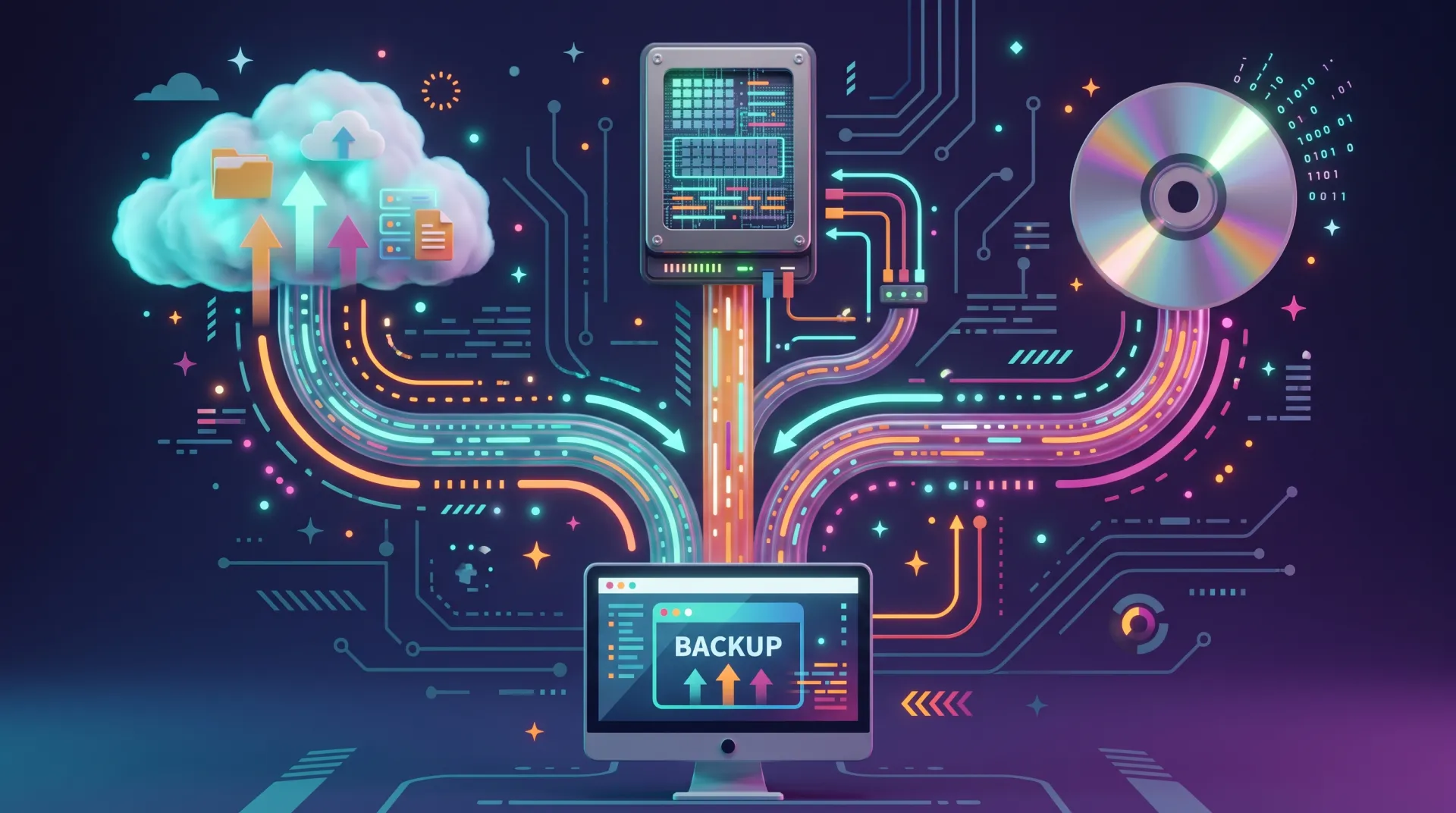
Learning how to back up your computer starts with knowing which files you’d miss if they disappeared. Your work documents, family photos, financial records, and unfinished projects deserve more protection than a single copy on your laptop.
A drive failure, stolen device, or accidental deletion can put those files out of reach. A backup gives you another copy to recover, and a useful backup plan includes a way to check that recovery works. The US Cybersecurity and Infrastructure Security Agency (CISA) recommends combining local and offsite copies, running backups regularly, and testing restores.
We’ll walk you through the tools for Windows, Mac, Linux, and Chromebook, then cover the phones and network storage that may hold the rest of your data. Use the navigation below to jump to your device or work through the guide to build your backup plan.
Find the Backup Instructions You Need
- How to Back Up Your Computer in Five Steps
- Backup Basics: What You Need to Know First
- What to Back Up & Where to Store It
- How to Back Up Your PC on Windows
- How to Back Up a Mac
- How to Back Up a Linux Computer
- How to Back Up a Chromebook
- Back Up Your Phone Too
- Don’t Forget Your NAS
- Manual vs. Automatic Backups: Which Should You Use?
- Back Up Your Devices With Data Deposit Box
How to Back Up Your Computer in Five Steps
A useful backup plan protects your important files, keeps a copy away from your computer, and gives you a tested recovery route. Here’s the setup process:
- Identify the files you need: Check Documents, Desktop, Pictures, Videos, and any folders where you save work.
- Choose a backup destination: An external drive provides a local copy, while cloud backup provides an offsite copy.
- Set up your device’s backup tool: Follow the Windows, Mac, Linux, or Chromebook instructions below.
- Add another independent copy: If your first backup stays at home or in the office, keep another copy elsewhere.
- Restore a few files: Open them and confirm that the backup contains the data you expected.
These steps follow CISA’s advice to identify important data, combine on-site and remote backups, and test recovery.
You don’t have to complete every part at once. Start protecting your files, then add the second destination and a regular restore review.
Backup Basics: What You Need to Know First
The 3-2-1 Backup Rule
The 3-2-1 rule gives you a practical way to organize your backups:
- Keep three copies of important data: the original and two backups.
- Use two different storage types, such as a local drive and cloud storage.
- Keep one copy offsite, away from your home or business.
CISA recommends this approach because hardware failure and physical damage can affect multiple devices in the same location.
For a laptop, that could mean your working files, an external-drive backup, and a cloud backup. Both backup destinations need to contain the important files you’re trying to protect.
Also consider how you protect the backups themselves. CISA recommends encryption, physical security, and offline copies. A drive that stays connected to your computer must not be your only recovery option.
Types of Backup
Backup methods differ in how much data they copy during each backup.
- Full: Copies all selected data. Main benefit: Provides a complete backup set. Main limitation: Requires more time and storage.
- Incremental: Copies changes since the previous backup. Main benefit: Reduces repeated copying. Main limitation: Recovery may depend on earlier backup data.
- Differential: Copies changes since the last full backup. Main benefit: Needs fewer backup sets for recovery than a traditional incremental chain. Main limitation: Grows until the next full backup.
These are the copying methods we outline. Continuous backup describes timing instead: The software monitors changes and backs up supported files automatically. It can still use incremental copying behind the scenes.
For everyday use, focus on what the tool protects, how often it runs, and how you restore files. You don’t need to select a copying method unless the software asks you to.
File Backup vs. System Image
A file backup protects selected data, such as documents, photos, and project folders. A system image captures the system more broadly, including the operating system, installed applications, and settings.
Choose file backup when recovering your work is the main priority. If you also need to rebuild a computer after drive failure, review whether your chosen solution supports whole-system recovery and what recovery media it requires.
These jobs aren’t interchangeable. Microsoft’s File History protects personal files, while its legacy System Image Backup feature addresses a different recovery task. Microsoft now lists that imaging feature as deprecated and points users toward another publisher’s full-disk backup solution.
Backup vs. Sync
Sync keeps files available across devices. A backup gives you a recovery copy when something happens to your working data.
Windows Backup uses OneDrive to sync selected folders, and iCloud Drive makes Mac Desktop and Documents files available across Apple devices. Those are useful features, but you still need to understand how deletions, overwrites, and recovery work.
Some sync services include deleted-file recovery or version history. Don’t assume that means they protect every folder or retain every version you’ll need. Validate coverage and recovery limits, then keep an independent backup for important files.
What to Back Up & Where to Store It
What to Back Up
Start with files you can’t easily recreate or download again. Navigate to these locations and data types:
- Documents, spreadsheets, presentations, and financial records
- Photos, videos, and other personal media
- Design files, code, audio projects, and unfinished work
- Locally stored email archives and contacts
- Desktop folders and files saved outside your usual locations
- Bookmarks, application settings, and other data you need to continue working
Don’t stop at the familiar folders. Verify where your applications save their projects and whether you use a second internal drive or external working drive. Add those locations to your backup selection when the tool supports them.
Some applications keep settings or project data outside Documents (like AppData on Windows). Check the application’s backup or export instructions, and confirm that your chosen backup tool includes the required location.
For a business computer, make a short checklist of essential folders. CISA recommends identifying the information your business needs before choosing and configuring its backups.
Where to Store Your Backups
- External hard drive or solid-state drive (SSD): Useful for local file backups and supported system images. What to note: Capacity, encryption, and exposure to the same incident as your computer.
- USB flash drive: Useful for small, occasional extra copies. What to note: Available space and the risk of losing it.
- Network-attached storage (NAS): Useful for central storage for several computers. What to note: Backup-tool compatibility and protection for the NAS itself.
- Cloud backup service: Useful for automatic offsite copies. What to note: Supported files, retention, upload speed, and recovery options.
- Sync storage: Useful for accessing files across devices. What to note: Folder coverage and recovery limitations.
Each destination serves a different purpose. We recommend a cloud backup as an offsite recovery option, along with a local backup for convenient recovery.
Leave room for older versions when choosing a drive. For Time Machine, Apple recommends a backup device with at least twice your Mac’s storage capacity. Other tools have different requirements, so check their guidance and your retention settings.
Before selecting a disk, double-check whether setup will erase or reformat it. Don’t use a drive containing your only copy of other important files.
How to Back Up Your PC on Windows
Windows offers several PC backup options. This section covers three built-in tools, followed by a fourth option: manually copying files.
If you’re using Windows 10, its standard support ended on October 14, 2025. Extended Security Updates are available for eligible enrolled devices, but backups remain necessary regardless of your update status. Make a current backup before upgrading or replacing your PC.
Option 1: Windows Backup to OneDrive
Windows Backup helps you preserve selected folders, settings, and information about your apps. It’s useful when moving to another Windows PC.
To set it up:
- Sign in to Windows with your personal Microsoft account.
- Open Start, search for “Windows Backup,” and open the app.
- Expand “Folders” and enable the folders you want to sync to OneDrive.
- Review the settings and preferences you want to preserve.
- Select “Back up” and review the resulting status.
Microsoft lists Desktop, Documents, Pictures, Videos, and Music among the supported folders. You can also manage the configuration through Settings > Accounts > Windows backup.
To recover on a new or reinstalled PC, sign in with the same Microsoft account during setup. Windows can restore supported settings and app pins; some apps still need to be downloaded or reinstalled. Your synced files become available through OneDrive.
The consumer Windows Backup app requires a personal Microsoft account, and the included OneDrive allowance is 5GB. Its folder protection uses sync, so it shouldn’t replace an independent backup of important files.
Option 2: File History to an External Drive
File History saves versions of personal files to an external drive or network location. It’s useful when you need an earlier copy of a file or want to recover something you deleted.
To turn it on:
- Connect your external drive.
- Open Control Panel > System and Security.
- Select “Save backup copies of your files with File History.”
- Choose the intended backup drive if necessary.
- Select “Turn on.”
After turning on File History, select “Advanced settings” to review how often Windows saves copies and how long it keeps them. Keep the backup drive connected when you want automatic backups to run. After the first backup, return to File History, confirm that it completed, and restore one non-critical file using “Restore to…” to test the setup.
File History protects supported personal-file locations, not every folder on your computer. Check that your important folders appear in the backup. If an application stores projects somewhere else, add that location to a protected library or use another backup method for it.
To restore, open File Explorer and navigate to the folder that contains, or previously contained, the file. Right-click the folder, select “Restore previous versions,” and choose a dated version. Use “Restore to…” to recover to a different location without overwriting your current copy.
Option 3: A System Image
A system image creates a broader recovery copy than a personal-file backup. It can include Windows, installed applications, settings, and files from the selected drives. Windows still provides the legacy “Backup and Restore (Windows 7)” interface, but Microsoft has deprecated System Image Backup. Don’t make it your only backup or assume that Microsoft will maintain it indefinitely.
If you use the legacy tool:
- Open Control Panel > System and Security.
- Select “Backup and Restore (Windows 7).”
- Click “Create a system image.”
- Choose an appropriate external drive.
- Confirm the included drives and start the backup.
For a new whole-system backup plan, follow Microsoft’s recommendation to evaluate a maintained full-disk backup product.
Before relying on any image, check its recovery instructions and create the required boot or recovery media. File restoration and whole-system recovery need different preparation.
To restore a system image:
- Connect the drive containing the system image.
- Open “Settings > System > Recovery.”
- Under “Advanced startup,” select “Restart now.”
- In the Windows Recovery Environment, select “Troubleshoot > Advanced options > System Image Recovery.”
- Choose the required image and follow the recovery prompts.
If Windows can’t start, boot from compatible Windows installation or recovery media and select “Repair your computer” to enter the recovery environment. Keep your BitLocker recovery key somewhere separate from the computer because Windows may request it before providing access to an encrypted drive.
Option 4: Manual Copies & FreeFileSync
For a one-off copy, open File Explorer and copy your selected folders to an external drive. Verify that the transfer finishes, then open a few files from the destination. This gives you another copy, but no automatic schedule or version history by itself.
FreeFileSync is another option for manually updating a folder-based copy. It compares source and destination folders so you can review changes before synchronizing them.
Choose its settings carefully. “Mirror” can delete destination files to match the source, while “Update” avoids propagating source deletions to the backup drive. Updating a file can still replace an older copy, so use its versioning feature if you need to preserve overwritten or deleted versions.
For ongoing offsite protection, Data Deposit Box supports continuous cloud backup for Windows computers. You can use it alongside a local backup rather than treating either destination as your only copy.
How to Back Up a Mac
Option 1: Time Machine
Time Machine is macOS’s built-in backup tool. It protects files including applications, photos, email, and documents, and lets you recover earlier versions.
To set it up:
- Connect an external storage device with enough capacity.
- Open the Apple menu > System Settings > General > Time Machine.
- Select Add Backup Disk, or the plus button.
- Choose your disk and follow the setup prompts.
- Enable backup encryption when offered and store the password safely.
- Let the first backup finish before disconnecting the drive.
Once the first backup finishes, open “System Settings > General > Time Machine > Options” and review the backup frequency. Keep the backup disk available when you want automatic backups to continue. Before relying on the setup, verify the latest backup time and restore one test file.
Apple recommends a backup disk with at least twice your Mac’s storage capacity. Follow any formatting prompts carefully because preparing the disk can affect its existing contents.
To restore an individual file with Time Machine:
- Open the Finder folder where the file is located or was previously stored.
- Use Spotlight to open Time Machine.
- Use the arrows and timeline to browse the available backups.
- Select the file or folder you need, then select “Restore.”
Time Machine returns the item to its original location. Open the restored file to confirm that it’s the version you expected.
An external Time Machine drive provides a local copy. Add an offsite destination so the computer and backup aren’t both vulnerable to loss at the same location.
For a new or erased Mac, connect the Time Machine disk and use Migration Assistant to transfer your applications, user accounts, settings, and files. If the Mac needs a fresh copy of macOS, reinstall macOS before starting the transfer.
Option 2: iCloud Drive
iCloud Drive makes selected files available across your Apple devices. To include your Mac’s Desktop and Documents folders:
- Open System Settings and select your name.
- Select iCloud, then Drive or iCloud Drive.
- Enable “Sync this Mac.”
- Turn on “Desktop & Documents Folders.”
These folders then sync through iCloud. Use this for access across devices, but keep Time Machine or another independent backup for recovery.
Option 3: Manual Copy
You can also copy selected files through Finder to an external drive. Apple describes this as a manual backup option for photos, videos, documents, and other files.
Copy rather than move the originals, wait for the transfer to finish, and check the destination. For ongoing protection, use an automatic tool so your backup doesn’t depend on remembering each transfer.
How to Back Up a Linux Computer
Linux backup tools vary by distribution. Start with your Home folder and add any important data you keep elsewhere.
Option 1: Déjà Dup / Backups
Déjà Dup, often displayed as “Backups,” provides a graphical way to protect personal files. Its default selection includes the Home folder but excludes Trash and Downloads, so review those choices before starting.
To configure it:
- Open Backups, or install Déjà Dup through your distribution’s supported software source.
- Start the first-backup setup.
- Review the folders to include and ignore.
- Choose your storage location, such as an external drive.
- Set an encryption password when prompted.
- Complete the first backup, then enable automatic backups under “Schedule.”
After the first backup finishes, check its completion status and restore a small file to a temporary folder. This confirms that you can access the backup and remember the encryption password.
Available destinations and interface details can vary by version. The project’s instructions explain how to adjust folders, storage, scheduling, and retention.
To recover files, open Backups and browse an existing backup, or choose “Restore From a Previous Backup…” if you’re configuring the app on another installation. Select the destination and backup date, then recover the required files. The restore interface differs between newer and older backup formats.
Option 2: Timeshift
Timeshift protects system files and settings so you can recover from a problematic system change. It excludes user data by default and explicitly isn’t intended to replace a personal-file backup.
Use it alongside Déjà Dup or another file-backup tool. A system snapshot won’t help recover documents it never included.
Option 3: rsync
If you’re comfortable with the terminal, rsync can copy your Home folder to an external destination.
First, confirm that the external drive is mounted and replace the example path with its actual location. Preview the operation:
rsync -av --dry-run ~/ /media/yourname/BackupDrive/home-backup/
If the source and destination are correct, run the copy:
rsync -av ~/ /media/yourname/BackupDrive/home-backup/
The --dry-run option previews changes without making them. These commands omit --delete, which would otherwise remove destination files that no longer exist in the source.
This is a file-copying method, not a complete versioned backup plan. Later copies can overwrite destination files, so use a backup application or a separate versioning strategy if you need historical recovery.
How to Back Up a Chromebook
Don’t assume that a Chromebook’s cloud-focused setup protects every local file. Files stored only on the device can disappear during recovery, which erases its local storage.
To protect important downloads and other local files:
- Open the Files app.
- Review Downloads and other folders under “My files.”
- Select the files you want to keep.
- Copy them to Google Drive or an attached external drive.
- Open the destination and check that the files arrived.
Review other local folders too, rather than copying Downloads and assuming the job is complete.
If you use the Linux development environment, back it up separately:
- Open Settings > Advanced > Developers.
- Select Linux > Back up and restore.
- Select “Back up.”
- Choose a destination and save the backup.
- If you saved it locally, copy the backup file off the Chromebook.
Google’s Linux backup tool saves the environment’s files and apps. Restoring a backup replaces the current Linux apps and data, and transferring it to another Chromebook requires compatible architecture.
Keep a separate copy of that backup before resetting or recovering the device.
Back Up Your Phone Too
Your phone may contain photos, contacts, messages, and documents that aren’t included in your computer backup. Use your phone’s supported backup tools, and ensure which types of data each method protects.
How to Back Up an iPhone
For an iPhone or iPad, turn on iCloud Backup under Settings > [your name] > iCloud > iCloud Backup. To create a computer backup, use Finder on a Mac running macOS Catalina or later, or the Apple Devices app on Windows. Use iTunes on a Mac running macOS Mojave or earlier, or on a Windows PC without Apple Devices. If you encrypt a computer backup, store its password somewhere safe because you’ll need it for recovery.
How to Back Up Android Phone Data
For Android, open Settings > Google > All services, then look for Backup under “Backup and restore.” Review the selected Google Account, included data, and photos and videos settings. Samsung Galaxy devices also offer Samsung-specific backup options through their pre-installed apps.
Android backup can include apps and app data, call history, contacts, device settings, and SMS and MMS messages. Photos and videos are handled separately through Google Photos, while manufacturers such as Samsung may provide additional backup options.
Don’t Forget Your NAS
A NAS can provide a central destination for computer backups, but it still needs protection of its own. If your only additional copy stays on the same premises, a fire, theft, or other physical incident can affect both.
Back up important NAS data to another destination, including an offsite copy. Look for both the NAS backup status and a sample restore.
Data Deposit Box offers native applications for Synology, QNAP, and ASUSTOR NAS devices, managed through the same account as other supported devices. Confirm compatibility with your particular device before setup.
Manual vs. Automatic Backups: Which Should You Use?
Automatic backups are the better starting point for ongoing protection because they don’t depend on remembering every copy. CISA recommends choosing a solution that runs automatically and regularly.
- How they run: Manual: You start each copy or backup. Automatic: Software runs on a schedule or monitors changes.
- Ongoing effort: Manual: You need to remember. Automatic: You need to monitor status and errors.
- Version history: Manual: Depends on the method. Automatic: Depends on the tool and settings.
- Offsite protection: Manual: Requires another destination. Automatic: Available with suitable cloud or remote backup.
- Best use: Manual: Extra copies and occasional archives. Automatic: Everyday file protection.
Automation doesn’t guarantee version history, offsite storage, or successful recovery. Those depend on what you configure.
How to Choose a Backup Solution
Compare the recovery you need, not just the list of features:
- Check device support: Confirm that the service supports your operating system and the data you want to protect.
- Review retention: Find out how long deleted files and previous versions remain recoverable.
- Check security controls: Look for encryption, account protection, and clear explanations of access.
- Understand recovery: Check how you retrieve files and whether whole-system recovery is included.
- Review storage and costs: Allow room for growth and understand how additional usage affects billing.
Test Your Backups
After the first backup, restore several files to a separate folder and open them. Include different file types and at least one file from a folder outside your usual Documents location.
Repeat the test every few months and after changing computers, drives, backup settings, or account credentials. Also check the latest successful backup date and any warning messages.
For a business, make sure the person responsible for recovery knows where the backups are and how to access the required credentials. CISA recommends testing both full and partial restoration, rather than relying only on a successful backup status.
Back Up Your Devices With Data Deposit Box
Managing separate backup tools across computers, phones, and NAS devices takes attention. Data Deposit Box brings supported devices and backups together under one account.
Data Deposit Box supports Windows, macOS, and Linux computers; iOS and Android mobile devices; and Synology, QNAP, and ASUSTOR NAS systems. Coverage and backup behaviour vary by platform. On iPhone and iPad, Data Deposit Box protects photos and contacts when you open the app to sync. On Android, it can back up selected photos, videos, contacts, and documents in the background.
For supported backup content, the service provides:
- Continuous or automatic backup on supported platforms, with platform-specific behaviour on mobile devices.
- Unlimited devices under one account
- Time-stamped file versioning for recovering earlier copies
- Two-factor authentication for account protection
- Central management through the MyData Portal
- Daily email reports to help you monitor backups
Available features and protected data vary by device. Check the coverage for each platform, select the required files or data types, and test recovery before relying on the backup.
Data Deposit Box encrypts your backups to help protect your stored files. Pair its offsite copy with a local backup, such as File History or Time Machine, and check that both protect the important data in your plan.
Plans start at $20/month with 200 GB of backup storage. Additional storage costs $0.10 per GB. Billing is monthly, with no long-term contracts or cancellation fees.
Try Data Deposit Box Free for 14 days, with no credit card required and full access to its features.
Frequently Asked Questions
How often should I back up my computer?
Choose a frequency based on how much new work you can afford to lose. If losing a day’s work would be a problem, a weekly backup isn’t enough. Use regular automatic backups and check that they complete successfully.
What’s the best way to back up a computer?
Use the 3-2-1 rule as your starting point: Keep the original and two backup copies, use two storage types, and store one copy offsite. For many readers, that means a local backup plus cloud backup.
Is OneDrive, iCloud Drive, or Google Drive a backup?
They can help protect and recover some files, but sync alone shouldn’t be your complete plan. Check folder coverage, version history, deleted-file recovery, and retention limits, then keep an independent copy of important data.
How long does the first backup take?
The first backup depends on the amount of data and the speed of the destination or internet connection. It generally has more to copy than later backups, which may transfer only changes. Let it finish and check its status before assuming everything is protected.
How big should my backup drive be?
Allow space for the selected data, future growth, and older versions. For Time Machine, Apple recommends at least twice your Mac’s storage capacity. Follow your chosen tool’s guidance rather than applying a one-size rule to every method.
Can I back up my computer without an external drive?
Yes. A supported cloud backup service can protect selected data over the internet without an external drive. You’ll still need to check folder coverage, available storage, and recovery options.
Do I need backups if my computer is new?
Yes. A new computer doesn’t remove the risk of accidental deletion, loss, or theft. Configure backups before the device becomes the only place holding important files.
How can I back up my computer at no extra software cost?
Use File History on Windows, Time Machine on Mac, or Déjà Dup on Linux. You’ll need a suitable storage destination, and that may involve buying a drive or paying for remote storage.
Can I back up my phone to my computer?
Yes. For an iPhone, use Finder on a Mac running macOS Catalina or later, or Apple Devices on Windows. iTunes remains available for older Macs and Windows PCs without Apple Devices. For Android, copying files over USB protects only the files you transfer, so use the phone’s supported backup tools when you also need app data, settings, contacts, or messages.