What Is Bare Metal Recovery? How BMR Works & When You Need It
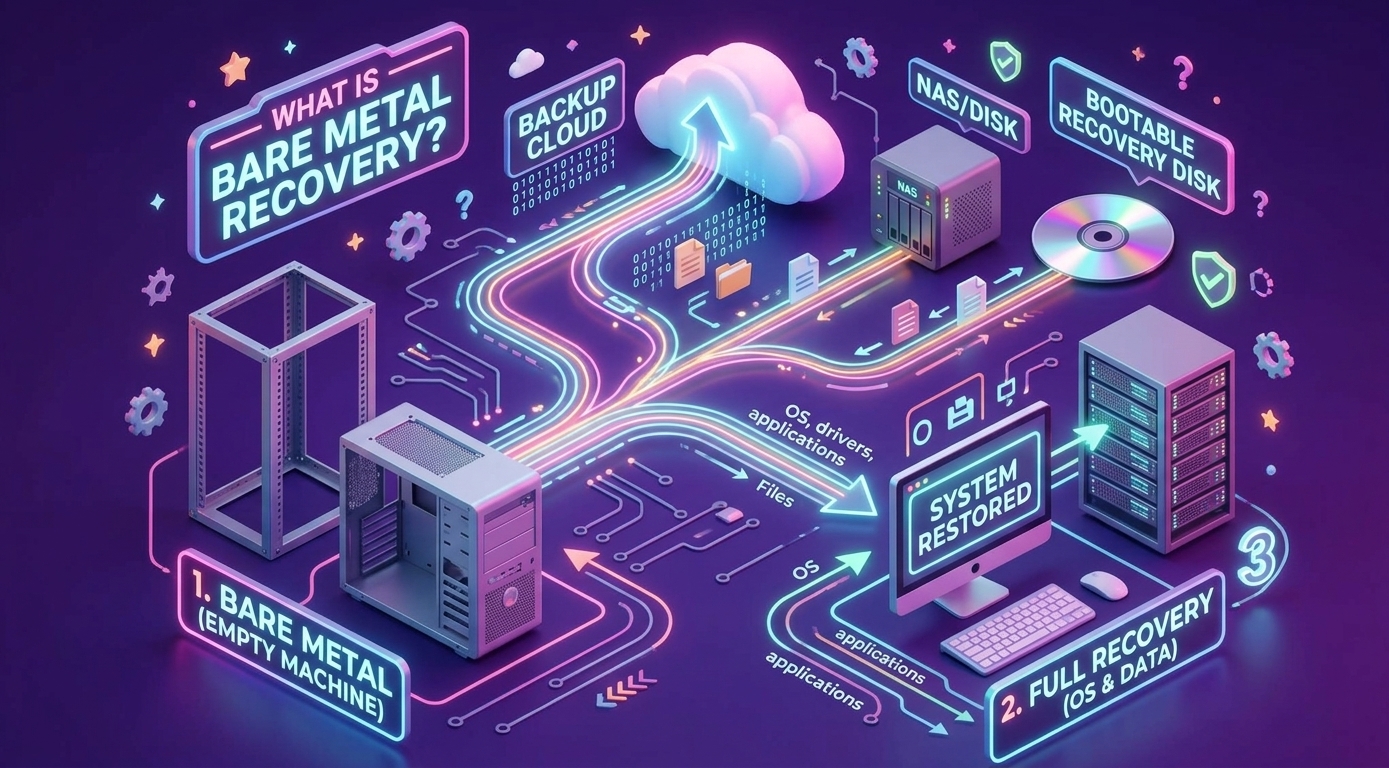
Bare metal recovery (BMR) is the process of restoring an entire computer, including its operating system, apps, settings, and files, from a system image backup onto a blank or new drive. You need it when a machine won't start after a drive failure, ransomware attack, or bad update. In this guide, we'll explain how BMR works on Windows, Mac, and Linux, and what to set up now so you're ready if it ever happens to you.
- What Is Bare Metal Recovery?
- When Do You Need Bare Metal Recovery?
- How Does Bare Metal Recovery Work?
- Bare Metal Recovery vs. File Restore vs. System Image Backup
- Bare Metal Recovery on Windows, Mac & Linux
- How to Prepare for Bare Metal Recovery
- The Limits of Bare Metal Recovery
- Pair Your System Image With Data Deposit Box
What Is Bare Metal Recovery?
Here’s a simple bare metal recovery definition: Bare metal recovery (BMR) is a way to rebuild a computer or server from scratch, onto a blank or brand-new drive, using a complete backup of the system. It restores everything in one pass: the operating system, drivers, settings, installed apps, and data. You'll also see it called bare metal restore or BMR backup.
The bare metal is the hardware with nothing on it. No Windows, no macOS, no Linux, just the machine. A normal file backup can't help you at that point, because there's no operating system to run the backup software on.
Bare metal recovery gets around that problem. It starts the machine from separate recovery media, like a USB drive, and writes a full copy of the old system back onto the empty drive.
When Do You Need Bare Metal Recovery?
You need BMR when the machine itself won't start, or when you're starting over on new hardware. Here are the most common cases:
- The system drive fails, and you replace it with a new, empty one.
- Ransomware or other malware has damaged the operating system so badly that cleaning it isn't safe.
- A failed update or corrupted boot files leave the computer unable to start.
- The computer is lost, stolen, or destroyed, and you need the same setup on a replacement.
- You're moving to new hardware and want an exact copy of a server or workstation you've already configured.
If you only lost a few files, you don't need BMR. A regular file restore is faster and simpler.
How Does Bare Metal Recovery Work?
Every BMR tool follows roughly the same seven steps. The first two happen long before anything goes wrong.
- Create a full system image ahead of time. Backup software copies the entire drive, block by block, including the hidden system and boot partitions. On Windows, a feature called Volume Shadow Copy takes a snapshot so the image stays consistent while you keep working.
- Make bootable recovery media. This is usually a USB drive, but it can also be a disc or a network boot option. It starts the machine without needing an operating system on the drive.
- Boot the failed machine from the recovery media. It loads a small recovery program with the tools and drivers needed to find your backup.
- Point it to the image. Your image might live on an external drive, a network-attached storage (NAS) device, or in the cloud.
- Restore the image to the new drive. The tool recreates the partitions and writes the operating system, apps, settings, and data back.
- Fix drivers if the hardware is different. Restoring to a different model can need extra storage or network drivers. Some tools call this universal restore or dissimilar hardware restore.
- Restart and check. Confirm the machine boots, your apps open, and your recent files are there.
Bare Metal Recovery vs. File Restore vs. System Image Backup
These three terms get mixed up a lot. The difference comes down to how much each one brings back and what it needs to get started.
File restore
- What it brings back: Files and folders you choose
- Needs a working OS? Yes
- Works on new or different hardware? Yes, files work anywhere
- Typical use: Deleted or overwritten files
- How often you'd back up: Continuously or daily
System image restore
- What it brings back: The whole drive, including the OS, apps, settings, and data
- Needs a working OS? No, it usually boots from recovery media
- Works on new or different hardware? Sometimes, if the hardware is similar
- Typical use: Rolling a machine back to a known good state
- How often you'd back up: Weekly or before big changes
Bare metal recovery
- What it brings back: The whole drive, onto blank or new hardware
- Needs a working OS? No, it boots from recovery media
- Works on new or different hardware? Yes, with the right drivers
- Typical use: A dead drive, ransomware, or a replacement machine
- How often you'd back up: Weekly or before big changes
Here's the simplest way to remember it: a system image backup is the copy, and bare metal recovery is the process of putting that copy onto empty hardware. Most people need two kinds of backup. One is an image for rebuilding the machine. The other is a file backup that captures the work you did today.
Bare Metal Recovery vs. System State Recovery
On Windows Server, you'll also see the term system state recovery. A system state backup covers only the core parts of the operating system, such as the registry, boot files, and Active Directory on a domain controller. It repairs a server that still runs.
Bare metal recovery includes the system state plus everything else. It's the option you use when the server won't start at all.
Bare Metal Recovery on Windows, Mac & Linux
You don't always need special software for BMR. Each platform has a built-in route, though some go further than others.
Windows Bare Metal Recovery
For bare metal recovery, Windows 11 and Windows 10 include two tools you can combine:
- Recovery drive: Search for Create a recovery drive in the Start menu to make a bootable USB with the Windows Recovery Environment.
- System image: The legacy Backup and Restore (Windows 7) tool in Control Panel can still create a full system image on an external drive. Microsoft has deprecated this feature, so it's worth testing before you rely on it. Our guide on how to back up your computer walks through the setup.
To recover, boot from the recovery USB and choose Troubleshoot > Advanced options > System Image Recovery. On some PCs, you'll find it under See more recovery options. Then point Windows to your image and follow the prompts.
Windows Server has the same option through Windows Server Backup, which includes a dedicated Bare metal recovery setting when you choose what to back up.
Mac
macOS doesn't do classic image-based BMR. Instead, recovery takes two steps:
- Start up in macOS Recovery and reinstall macOS on the new or erased drive.
- Use Migration Assistant to restore your apps, settings, and files from a Time Machine backup.
The result is the same as BMR: a working Mac that matches your old one. It just takes longer, and large restores can run for hours.
Linux
Linux admins usually turn to dedicated tools. Clonezilla creates and restores full disk images from a bootable USB. Relax-and-Recover (ReaR) builds a bootable rescue image for each server and is common on enterprise distributions. On desktops, Timeshift protects your system files, but it isn't a full image on its own.
How to Prepare for Bare Metal Recovery
BMR only works if you set it up before something breaks. Use this checklist to get your bare metal backup in place:
- Create a full system image of every machine you can't afford to rebuild by hand. Start with servers and your main work computers.
- Refresh it regularly. Weekly is common, plus before major updates or new software installs.
- Make the recovery media now and label it. It's much easier to create a recovery USB on a working computer than during a crisis.
- Keep a copy of the image off the machine. An image stored on the same drive it protects is useless when that drive dies.
- Back up your files continuously, too. An image from last Sunday won't include Thursday's work.
- Store your keys and passwords somewhere separate. That includes BitLocker recovery keys, backup encryption passwords, and software licence keys.
- Test a restore at least once a year. Use a spare drive or a virtual machine. You'll find out how long recovery really takes.
The Limits of Bare Metal Recovery
BMR gets a dead machine running again, but it has gaps you'll want to plan around:
- Images go stale. Anything created or changed after your last image is lost, unless you also have a file backup.
- Images are large. A full image takes up as much space as the used part of the drive, so most people keep only a few.
- Different hardware can cause problems. Missing storage or network drivers can stop a restored system from booting. Switching between BIOS and UEFI boot modes can too.
- An infected image restores the infection. If ransomware was already on the machine when you took the image, restoring it brings the ransomware back. Keep several older images so you can go back further.
- Restores take time. Writing hundreds of gigabytes back to a drive can take hours, and longer if the image is in the cloud.
That's why bare metal recovery works best as one layer of your backup plan, not the whole plan. The 3-2-1 backup rule is a good model: three copies of your data, on two types of storage, with one copy offsite.
Pair Your System Image With Data Deposit Box
A system image gets your machine running again. A continuous offsite file backup makes sure nothing you created since that image is lost, and it protects your files if the image itself is gone.
Data Deposit Box handles that second layer for you:
- Continuous, automatic backup. Our patented continuous backup saves your files and folders in real time as they change, so your newest work is always covered.
- Offsite by default. Your backups live in the cloud, so a fire, theft, or ransomware attack at the office doesn't take them with it.
- Support for the devices you use. DDB works on Windows (including Windows Server), macOS, and Linux, plus Synology, QNAP, and ASUSTOR NAS devices where you might keep your images.
- File versioning. Time-stamped storage lets you restore earlier versions of any file, including copies from before an infection.
After a bare-metal recovery, restore your latest files from DDB, and you're back to where you were yesterday, not where you were last Sunday.
Plans start at $20 USD per month, which includes 200 GB of storage. If you need more, it's $0.10/GB as you grow.
Try DDB FREE for 14 days, no credit card required.
Frequently Asked Questions
What is bare metal recovery in simple terms?
It's rebuilding a computer from nothing. You start with an empty drive, boot from a recovery USB, and copy a complete backup of the old system onto it, including the operating system, apps, settings, and files.
Is bare metal recovery the same as a system image?
Not quite. A system image is the backup file. Bare metal recovery is the process of restoring that image onto blank or replacement hardware.
Can you do bare metal recovery to different hardware?
Often, yes. Many backup tools can add the drivers a new machine needs during the restore. Restoring to identical hardware is still the most reliable option, so test it before you depend on it.
Can you do bare metal recovery from the cloud?
Some backup tools can restore a system image from cloud storage. It works, but downloading a full image takes much longer than restoring from a local drive. A common setup keeps images on a local drive and files in the cloud.
Does bare metal recovery remove ransomware?
Only if you took the image before the infection. Restoring an infected image brings the ransomware back. That's why it helps to keep several older images, plus a file backup with versioning.
Do I need bare metal recovery for a home computer?
It's useful, but you can get by without it. Many home users rely on a file backup and a fresh operating system install. If your computer has a lot of software and settings you'd hate to set up again, a system image will save you hours.